Template · 26-page PDF · Premium
Cleaning Schedule Template Word: A System, Not Just a Table
Create a cleaning schedule template in Word that survives past week two: task inventory, daily/weekly/monthly checklists and family rotas. Get the pack.
The full workbook, ready to print
- ✓Step-by-step Word build: tables, checkboxes, styles and .dotx saving
- ✓Complete task inventory sorted into daily, weekly, monthly and seasonal
- ✓Family rota and accountability sheets with age-appropriate task splits
- ✓Office and commercial rosters with initials and supervisor sign-off logs
- ✓Print-and-use checklist set: daily, weekly, monthly and office versions
- ✓Planner design kit: font pairings, grid layouts and reusable Word styles
- ✓30-day rollout plan with review points at days 7, 14 and 30
Hosted on FileJoker. Premium members download instantly; free download has a wait.
In a hurry? Free one-page checklist41 items to tick off · print-ready PDF, no sign-upDownload freeIncluded bonuses — free with the guide
1 extra guide from the same topicA look inside the PDF
11 sections · 26 pages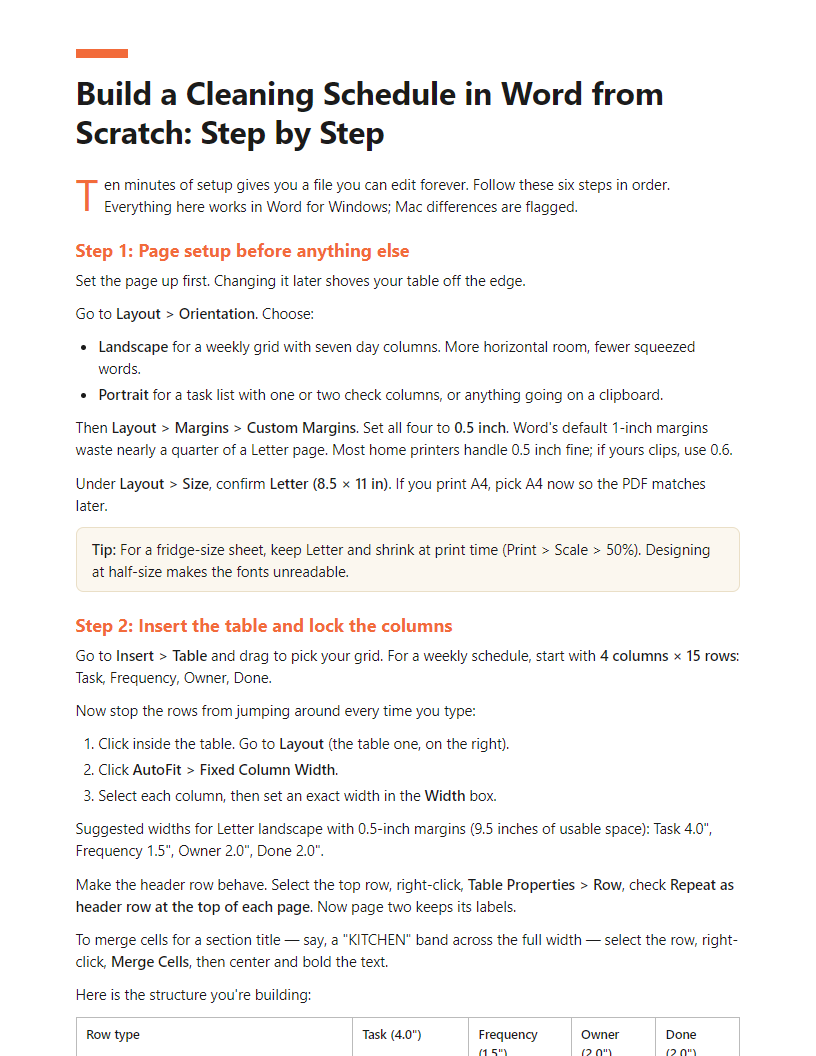
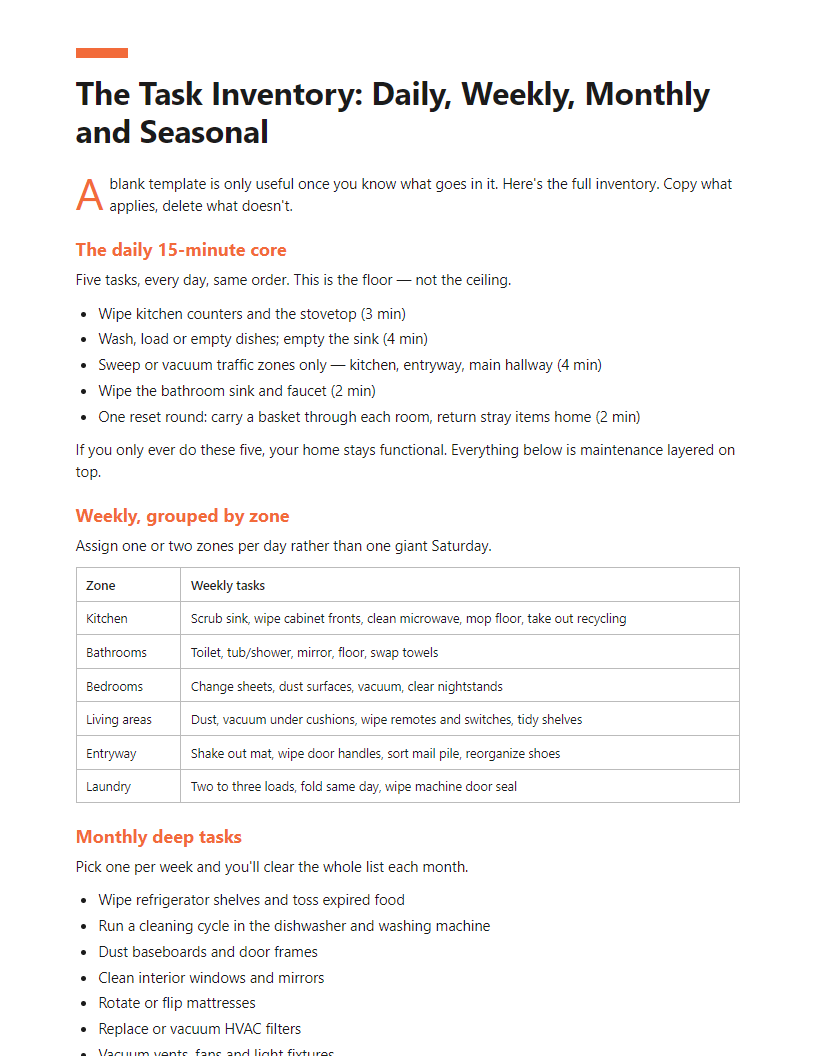
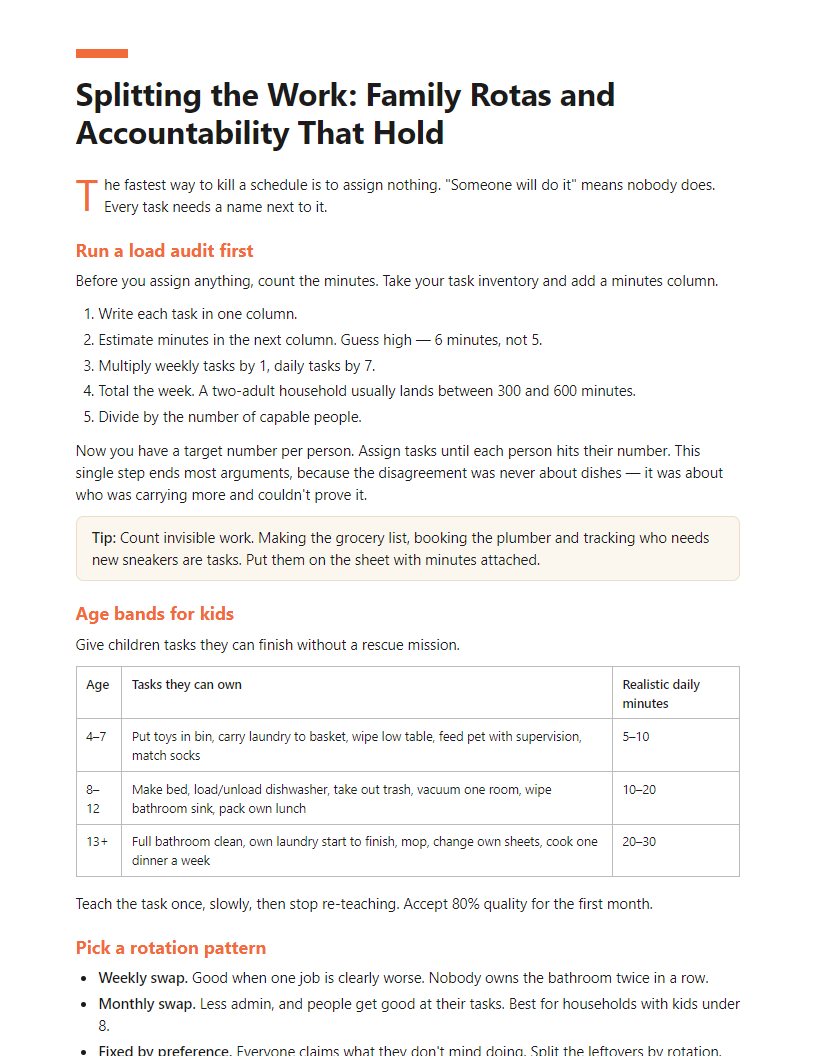
Full table of contents
- Why Most Cleaning Templates Get Abandoned in Week Two
- The Fastest Route: Word's Built-In Templates vs Building Your Own
- Build a Cleaning Schedule in Word from Scratch: Step by Step
- The Task Inventory: Daily, Weekly, Monthly and Seasonal
- Time-Saving Methods: the 5-5-5 Rule and Three Alternatives
- Splitting the Work: Family Rotas and Accountability That Hold
- Office and Commercial Versions: Rotas, Rosters and Sign-Off Logs
- Eight Mistakes That Break a Cleaning Schedule
- Print-and-Use Checklists: Daily, Weekly, Monthly, Office
- Design Your Own Planner: Fonts, Grids and Reusable Styles
- Your 30-Day Rollout and File Pack
In this article
You’ve tried it before: a cleaning schedule template in Word, printed on a Sunday, ignored by Wednesday. Or you’ve spent an hour hunting printable house cleaning checklists and found nothing you can actually edit for your home — your pets, your kids, your allergies, your working hours. The house feels like it’s winning.
This page shows you why most schedules collapse in week two, how Word’s built-in templates compare with building your own tables and checkboxes, and which time-saving methods (including the 5-5-5 rule) are worth your effort.
The premium PDF goes further: a full step-by-step Word build, a complete task inventory, family rota and accountability sheets, office and commercial sign-off logs, and print-ready checklists in editable Word plus PDF.
The short answer
To build a cleaning schedule template in Word:
- List every task in your home, then tag each daily, weekly, monthly or seasonal.
- Insert a table — columns for days, rows for tasks or rooms.
- Add checkboxes via Developer tab → Check Box Content Control, or use the Wingdings ☐ character for printing.
- Assign names in a dedicated column so work is shared, not assumed.
- Save as a Word template (.dotx) so each week starts clean.
- Export a PDF copy to print and pin where everyone sees it.
Why Most Cleaning Templates Get Abandoned in Week Two
You downloaded a schedule. You used it for nine days. Then it vanished under the mail pile. That’s not a discipline problem — it’s a design problem.
The three failure patterns
Too many tasks. A template that lists 14 daily jobs is a fantasy. Most homes need five to seven daily tasks, maximum.
No owner per task. “Clean bathroom” with no name next to it belongs to nobody. Every line needs a person, even if that person is always you.
No printed copy on the wall. A schedule saved in a folder is not a schedule. It has to be visible where the work happens — fridge, utility closet, break room.
Sixty-second self-assessment
Write down five numbers before you build anything:
- Square footage (rough is fine)
- Number of people living or working in the space
- Pets, and whether they shed
- Kids under 5
- Allergy or asthma triggers in the house — dust, dander, mold
More square footage and more shedding means more floor time. Kids under 5 means more surface wiping and fewer deep-clean days. Allergy triggers push vacuuming and bedding changes higher up the list.
Which schedule do I need?
| Situation | Template type | Where in this guide |
|---|---|---|
| One household, one or two adults doing the work | Simple daily/weekly home schedule | Sections 3, 4, 9 |
| Household with kids or roommates sharing chores | Home schedule plus rotating chore chart | Sections 6, 9 |
| Office, shop or clinic with staff tidying their own areas | Office rota with zones and initials column | Sections 7, 9 |
| You pay cleaners, in-house or contracted | Accountability log with sign-off and date columns | Section 7 |
| You manage a cleaning team across several sites | Roster plus per-site sign-off sheets | Sections 7, 12 |
What you’re building
Editable Word tables you control, saved as print-ready PDF checklists. No subscription, no app, no locked file.
Tip: If you feel buried right now, skip ahead to Section 5 and run the 5-5-5 rule for three days. It takes 15 minutes a day and gives you enough breathing room to build the full schedule later this week. Start small, then formalize.
The Fastest Route: Word’s Built-In Templates vs Building Your Own
Yes, Word has templates — here’s where
Open Word. Click File > New. In the search box, type schedule, planner, or checklist and press Enter. Word pulls live templates from Microsoft’s online library, so you need an internet connection the first time.
You’ll see weekly planners, chore charts, project schedules and to-do lists. Some are labeled for students or work shifts. Pick one, click Create, and it opens as an editable document you can type over and save as your own.
That answers the search. The harder question is whether any of them work for cleaning.
Why the built-in ones fall short
Microsoft’s planners are built for appointments, not housework. Three gaps show up fast:
- No frequency logic. A weekly planner treats every box the same. Cleaning doesn’t work that way — the sink is daily, the baseboards are quarterly. You need the schedule to carry that difference.
- No owner column. If nobody’s name sits next to a task, nobody does it. Appointment templates assume one user.
- No rotation. Household and staff schedules need jobs to move between people. A static grid can’t do that without a rebuild each month.
You can patch all three by adding columns. That’s a five-minute edit, not a redesign.
The 60-second version
If you want something on the fridge tonight:
- Open a blank Word document.
- Insert > Table, choose 8 columns by 6 rows.
- Type the days of the week across the header row, leaving cell A1 blank.
- Type your zones down the first column: Kitchen, Bathrooms, Bedrooms, Living areas, Floors.
- Fill in one task per box. Leave boxes empty on purpose.
- File > Save As > PDF, then print.
That’s a real, usable schedule. Section 3 builds the full version with owner and frequency columns.
So: edit a template, or build your own?
Edit a built-in template when you live alone or share with one other adult, and nobody needs to track who did what. A one-page weekly grid is enough, and Word’s gallery gets you there in ten minutes.
Build your own when more than two people share the work, when jobs rotate, or when anyone has to sign off on a completed clean. Those schedules need an owner column, a frequency column and a date column — three things no stock planner ships with. The “Which schedule do I need?” table in Section 1 tells you which camp you’re in and which sections to read.
A simple grid stops working the moment two people need to agree on who did what.
Free vs paid
Microsoft’s templates are free with any Word install, including Word on the web. Plenty of free printables exist online as locked PDFs — fine to print, impossible to edit.
What this guide adds: the task inventory behind the grid, a fair split method, and formatting that survives printing.
Time-Saving Methods: the 5-5-5 Rule and Three Alternatives
The schedule you build should match how you actually work. Four methods below. Pick one, then shape your Word table around it.
The 5-5-5 rule
Fifteen minutes, split three ways:
- 5 minutes tidying — put things back where they live. No cleaning, just relocating.
- 5 minutes wiping — counters, sinks, the one table that collects everything.
- 5 minutes floors — sweep or vacuum the two rooms that need it most.
Set a timer for each block. When it rings, stop and move on, even if the job isn’t finished. That rule is the whole point. The 5-5-5 works best when you’re already tired, short on time, or coming back after a week where nothing got done. It keeps a house from sliding backward. It won’t deep-clean anything.
Zone cleaning
One room per weekday. Monday kitchen, Tuesday bathrooms, Wednesday bedrooms, Thursday living areas, Friday entry and laundry. Weekends stay free.
Each zone gets 20–30 minutes, not a full clean. This suits people who like finishing something. You walk out of one room done, instead of half-done in five rooms.
Task-type cleaning
Batch by action, not by room. All dusting Monday. All floors Tuesday. All bathrooms Wednesday. All laundry Thursday.
You carry one set of supplies and repeat one motion. Faster per task, and good for larger homes or offices where you’d otherwise haul a caddy around twelve times.
The 20/10 timer method
For the days you feel like you’re drowning. Work 20 minutes, rest 10. Repeat up to three times, then stop for the day.
Pick nothing in advance. Start with whatever’s in front of you. The rest period is not optional — it’s what makes the method repeatable tomorrow. If 20 minutes feels like too much, run 10/5. Two under 2 and a business to run counts as a reason to shorten it, not to skip it.
How each method changes your table
| Method | Rows are | Columns are | Table size | Best for |
|---|---|---|---|---|
| 5-5-5 | The 3 blocks (Tidy / Wipe / Floors) | Mon–Sun checkboxes | 4 × 8 | Minimum viable upkeep |
| Zone cleaning | The 5 zones | Tasks, Time, Done, Who | 6 × 4 | People who need a finish line |
| Task-type | The 5 task types | Rooms covered, Day, Done | 6 × 4 | Big homes, offices, paid cleaners |
| 20/10 | Blank numbered slots (1–3) | Task written in, Start time, Done | 4 × 3 | Overwhelm days, no fixed plan |
Note the flip: in the 5-5-5 layout, days run across the top. In zone and task-type layouts, days sit inside a column because the rows are now zones or task types. That single decision determines whether your schedule prints landscape or portrait.
Tip: Build one file with all four tables on separate pages. Use the one that fits the week you’re having. A hard week gets 20/10. A normal week gets zones.
Eight Mistakes That Break a Cleaning Schedule
1. Over-scoping the day
Forty tasks and 20 minutes is a setup for failure. Count your real available minutes, then fill 70% of them. If your daily block is 20 minutes, list five tasks, not twelve. A short list you finish beats a long list you abandon.
2. No owner column
A schedule without names belongs to whoever feels guiltiest. That’s usually one person, and that person quits by week three. Add an Owner column to every table — home or office. Initials are enough.
3. Living only on a phone
Apps send notifications you swipe away. A printed sheet on the fridge or the supply closet door sits in your line of sight all day, and anyone can check a box without unlocking anything. Keep the digital file as your master, but print the current week. If you’re feeling like you’re drowning in household and business tasks, the paper copy is what stops you re-deciding everything each morning.
4. Column widths that move on print
Word’s tables auto-fit to contents by default, so a long task name shoves your Friday column off the page. Fix it: select the table, go to Layout > AutoFit > Fixed Column Width, then set exact widths under Table Properties. Print one test page before you print fifteen.
5. No skip-week allowance
One missed Tuesday should not end the system. Build the forgiveness in: mark two tasks per week as “optional,” or add a Catch-Up row at the bottom of the weekly table. Anything missed moves down a row instead of into the trash.
Tip: Write “3 out of 5 days is a win” at the top of your printed sheet. It keeps a missed day from becoming a missed month.
6. Deep-clean tasks on the weekly list
Baseboards, oven interiors, window tracks and grout do not need weekly attention. Put them on a quarterly or seasonal tab. When heavy jobs sit on the weekly sheet, the whole sheet starts to look impossible, and people stop reading it.
7. A locked PDF as your master
A free PDF template you can’t edit becomes dead weight the moment your routine changes. Keep an editable .docx as the master file and export the PDF for printing. Name them clearly: CleaningSchedule_Master_v1.docx and CleaningSchedule_Week_Print.pdf. If someone hands you a PDF-only template, retype it into a Word table once — you’ll edit it fifty times after that.
8. Never revising it
Your first version will be wrong. Set a calendar reminder for day 14 and day 30. Cut every task nobody did, move anything that took twice as long as planned, and reprint. Three rounds of edits turns a generic template into a schedule that fits your actual house or crew.
Frequently Asked Questions
How can I create my own cleaning schedule?
Four moves, in this order:
- List every task your space actually needs, by room.
- Sort each task into daily, weekly, monthly or seasonal.
- Count your real minutes per day and per weekend, then cut the list until it fits 70% of that.
- Put a name and a day next to every line.
Then build it as a table in Word so you can edit it forever. Don’t start with a blank page and a pretty header — start with the task list. The format is the last decision, not the first.
What is the 5-5-5 rule for cleaning?
Fifteen minutes, split three ways:
- 5 minutes tidying — put things back where they live. No cleaning, just relocating.
- 5 minutes wiping — counters, sinks, the one table that collects everything.
- 5 minutes floors — sweep or vacuum the two rooms that need it most.
It works because it’s short enough to do on a bad day. Set a timer and stop when it goes off, even mid-task. The point is the habit, not a spotless house.
Does Microsoft Word have a schedule template?
Yes. Go to File > New, type schedule, planner or checklist in the search box, and press Enter. Word pulls live results from Microsoft’s online library. You’ll find weekly planners, chore charts and task lists you can open and edit immediately. None are built specifically for cleaning, so expect to rename columns and rewrite rows. That’s usually faster than building from scratch — but slower to maintain, because someone else chose the structure.
Where can I find free printable house cleaning templates?
Three reliable sources, in order of usefulness:
| Source | What you get | Catch |
|---|---|---|
| Word’s built-in gallery | Editable .docx, free | Generic, not cleaning-specific |
| Microsoft Create (create.microsoft.com) | Browse-first, opens in Word online | Needs a free Microsoft account |
| Your own file | Exactly your rooms and names | 10 minutes of setup |
Print any Word file to PDF with File > Save As > PDF, or File > Print > Save as PDF on Mac. That gives you a fixed, printable copy nobody can accidentally edit.
Can I edit the Word file on a Mac, on mobile, or in Google Docs?
Yes to all three, with limits.
- Mac: everything in this guide works. Menu paths differ slightly; tables, styles and PDF export are the same.
- Mobile (iOS/Android Word app): fine for ticking boxes and typing names. Avoid restructuring tables on a phone — column widths get messy.
- Google Docs: upload the .docx and it opens. Tables and shading survive. Complex borders and some fonts may shift, so check the print preview before you rely on it.
Keep the .docx as your master file. Export a fresh PDF whenever you change it.
How do I add working checkboxes I can tick on screen?
Turn on the Developer tab: File > Options > Customize Ribbon, then check Developer. On Mac it’s Word > Preferences > Ribbon & Toolbar. Now click inside a table cell and choose Developer > Check Box Content Control. Clicking the box toggles it on screen. For printed copies, a plain empty cell or a typed square works just as well — and uses no setup.
What’s a realistic weekly time budget for a three-bedroom home?
Plan roughly 15 minutes daily plus one 60–90 minute weekly block, so about 2.5 to 3 hours a week total. Monthly and seasonal tasks sit on top of that. Track your own times for two weeks and adjust — homes, standards and household sizes vary too much for one number to fit everyone.
- ✓Step-by-step Word build: tables, checkboxes, styles and .dotx saving
- ✓Complete task inventory sorted into daily, weekly, monthly and seasonal
- ✓Family rota and accountability sheets with age-appropriate task splits
- ✓Office and commercial rosters with initials and supervisor sign-off logs
- ✓Print-and-use checklist set: daily, weekly, monthly and office versions
- ✓Planner design kit: font pairings, grid layouts and reusable Word styles
- ✓30-day rollout plan with review points at days 7, 14 and 30
Frequently asked questions
How do I create my own cleaning schedule?
Start with a brain dump of every cleaning task, then sort them by frequency: daily, weekly, monthly, seasonal. Spread weekly tasks across days so no single day is overloaded — one room or one category per day works well. Assign each task to a person, set a realistic time limit, and review after two weeks. Adjust the schedule to your life, not the other way round.
What is the 5-5-5 rule for cleaning?
The 5-5-5 rule means spending five minutes on each of three quick tasks — commonly five minutes tidying, five minutes wiping surfaces and five minutes on floors — for a fifteen-minute reset. Variations use five items put away, five surfaces cleared and five minutes of focused work. It suits busy days when a full schedule is unrealistic, and it keeps maintenance going between deeper cleans.
Does Microsoft Word include a schedule template?
Yes. Open Word, choose New, and search "schedule", "chore" or "planner" in the template gallery. You'll find weekly planners and chore charts you can edit. They're a fast start, but most are generic — no frequency tagging, no accountability column and no room-by-room logic — so plan to restructure the table rather than just typing over the sample text.
Where can I find printable house cleaning checklists?
Plenty of blogs offer printable sheets, but they're usually PDF-only and locked to someone else's routine. The practical fix is a dual-format pack: an editable Word file you customise for your household plus a PDF you print and pin. Our premium download includes daily, weekly, monthly and office checklists in both formats, so you adapt first, then print.
Can I use the same template for an office or cleaning staff?
Not without changes. Home schedules track habits; workplace rotas track accountability — named shifts, areas, frequency standards, initials and date columns, plus a supervisor sign-off. Add a comments line for issues such as stock shortages. The premium PDF includes office and commercial versions with rosters and sign-off logs you can edit in Word for your own site.
We collected 39 real questions and comments about "cleaning schedule template word" (6 from YouTube comments, 4 from People Also Ask, 29 from search suggestions), grouped them into 11 recurring problems, and built this guide to resolve the 7 that block people most. The top-ranking pages were reviewed for gaps; 7 of those gaps became dedicated sections.
Edited by Alex Hirn · Last updated October 15, 2026 · How we make our guides
More in Home & Organizing
 free
 premium+1 bonus
 premium+1 bonus
 premium+1 bonus